
Following are step-by-step instructions for logging into Zendesk, entering new tickets, and checking the status on your existing tickets.
Logging In
- To login, go to https://wcssupport.zendesk.com
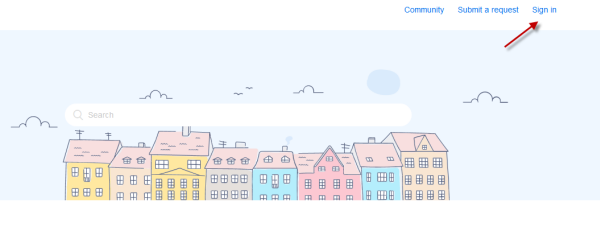
- Click the Sign In link at the top right
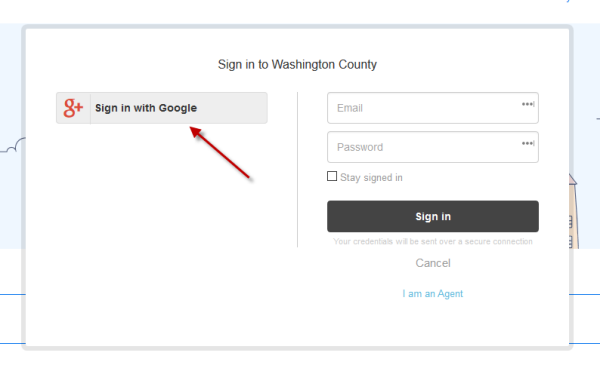
- Choose the option to "Sign In With Google"
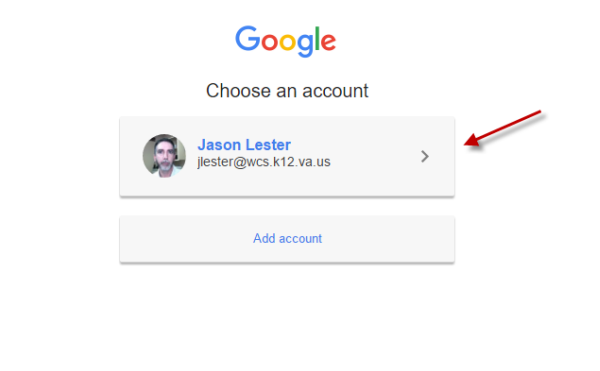
- Select your wcs.k12.va.us account
- You should now be logged in and at the Community site.
Entering Tickets
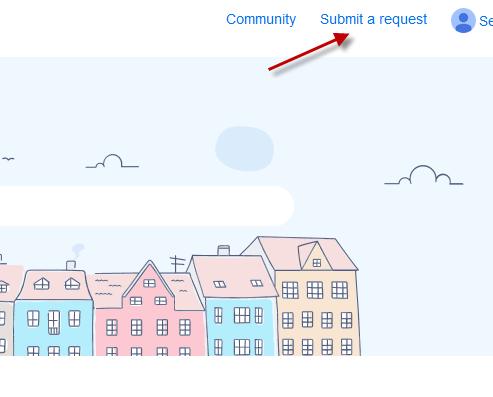
- To enter a new ticket, click the "Submit a Request" link
- Fill out all the information requested. Be as detailed as possible. If you have a picture or screenshot of the image, please upload it to the ticket.
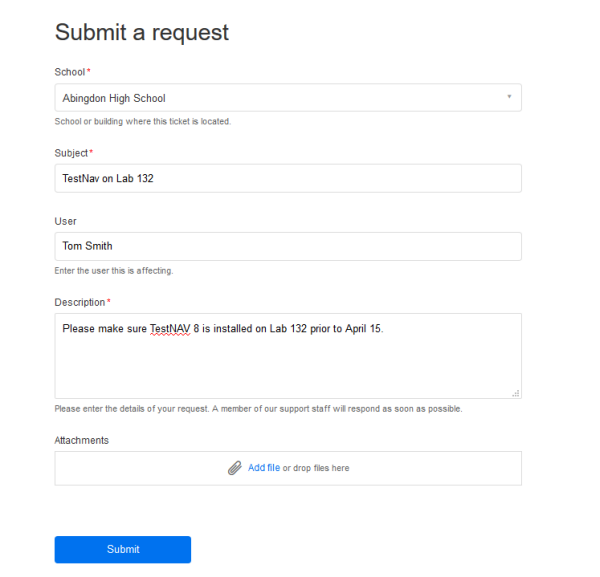
- Click Submit when finished. You will get an e-mail when the ticket is opened or updated.
Viewing and Updating Tickets
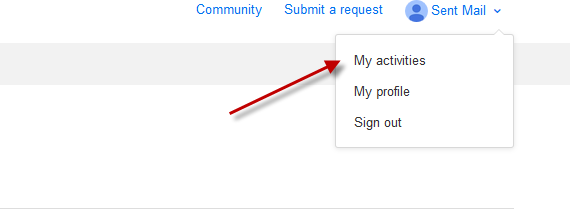
- To view your tickets, click your login at the top right of the Community page and choose My Activities
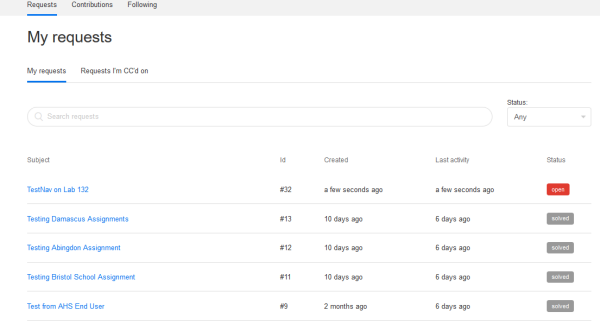
- A list of your recent tickets will be displayed.
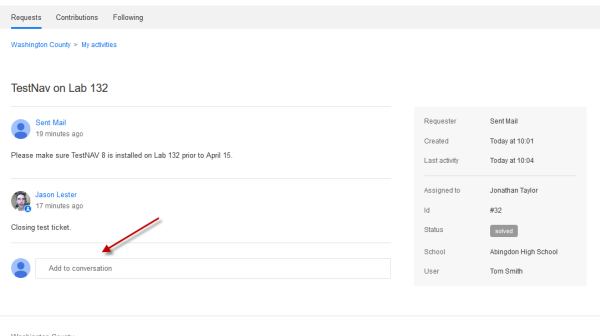
- Click on a ticket to view the current status. You can update the ticket by typing in the "Add To Conversation" box. If the ticket has been closed, adding new information will automatically re-open it.
Comments
0 comments
Please sign in to leave a comment.